Music
Welcome to Dynaudio Music

Your Dynaudio Music speaker is a very high performance product that rewards thoughtful setup and installation, so we suggest that you take a little time to read this manual before you begin.
Getting to know Dynaudio Music
Dynaudio Music speakers are network and Bluetooth® connected intelligent speaker systems that enable multiple audio sources and streams to be played with very high audio quality without the need for conventional source or amplification components. Dynaudio Music speakers are compact and portable and can be used wherever you need your music.
Note
This manual covers all four Dynaudio Music models. Differences of function and behaviour between the models are described within the text.
Dynaudio Music speakers can be controlled using either the Dynaudio Music App for iOS or Android, or, except for Music 1, their remote control handsets. Commonly used control functions are also available via buttons on the speakers themselves.
The remote control handset supplied with Music 3, Music 5 and Music 7 provides a basic set of playback, volume and source selection controls.
Before you begin installing and configuring your Dynaudio Music speaker, please download and install the Dynaudio Music App on your iOS or Android device. It is not possible to install your Dynaudio Music speaker without the Dynaudio Music App.
Note
The Dynaudio Music App requires iOS version 9 or Android version 4.4 or later. We recommend however that the most recent iOS or Android version is used whenever possible.
The following section lists the features and functions of your Dynaudio Music speaker.
Dynaudio Music Speaker Features
All Dynaudio Music speakers can do the following:
- Play audio streams via AirPlay directly from iTunes® or alternative playback apps via a wireless network connection.
- Play iRadio stations from all over the world via a wireless network connection.
- Play audio streams using UPnP™ via a wireless network connection from UPnP™ equipped network storage hardware.
- Play music streamed from an macOS, iOS, Android, Windows or Windows Mobile device using a Bluetooth wireless connection.
- Play audio from conventional audio sources using a 3.5mm jack analogue source.
- Play digital audio from an iOS device such as an iPhone, iPad or iPod Touch via USB.
- Provide USB battery charging for appropriate devices.
Music 5 and Music 7 can additionally play audio from conventional audio sources using a Toslink optical digital connection, and Music 7 can play audio from an HDMI equipped television.
Music 1 and Music 3 can operate from either mains power or their internal rechargeable battery.
This manual will tell you everything you need to know to get the most from your Dynaudio Music speaker. It begins with unpacking notes and by illustrating the contents of the carton.
Unpacking
After unpacking, make sure the components are complete and check the unit and all accessories for transport damage. Transport damage may be expected if the packaging is already severely harmed. Do not attempt to install a damaged device. If the contents are incomplete or damaged, please contact your Dynaudio distributor. Distributor addresses can be found at: dynaudio.com.
Packaging Material
The packaging has been designed so that it may be reused if it was not damaged during initial transport. Keep the packaging and use it for all further transport.
Disposal
Disposal of used electrical and electronic equipment (applicable in European countries with separate collection systems for this equipment)

This symbol on the product or its packaging indicates that the product may not be treated as household waste. Instead it must be handed over to the applicable collection point for the recycling of electrical and electronic equipment. By ensuring this product is disposed of correctly, you will help prevent potential negative consequences for the environment and human health. The recycling of materials helps to conserve natural resources. For more detailed information on recycling this product, please contact your local authority, community waste disposal of, or the shop where you purchased the product.
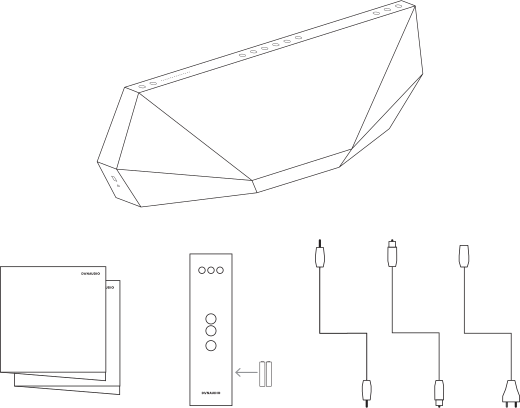
Carton Contents
- 1 x Dynaudio Music intelligent wireless music system
- 1 x Mains power cable (Music 1 also includes an external power supply)
- 1 x Analogue audio jack cable
- 1 x Toslink optical digital audio cable (not Music 1 and Music 3)
- 1 x Dynaudio Music remote control handset (not Music 1)
- 1 x Handset battery pack (not Music 1)
- 1 x Document pack
Installation
Positioning
Thanks to their wireless connection facilities and intelligent acoustics, Dynaudio Music speakers are more versatile in terms of positioning than conventional speakers. The Music 1 and Music 3 can also run from their internal rechargeable batteries so liberating them from mains power connection.
For best results however we would usually recommend that your Music speaker is placed on a shelf or furniture unit so that it is approximately at ear height when sitting. It is for you to decide how you use your speaker though, and through its intelligent acoustics it will sound good wherever you use it. If you regularly use your Dynaudio Music speaker in a variety of locations, make sure the Intelligent option is selected in the Dynaudio Music App RoomAdapt settings menu.
Diagram 2 illustrates Dynaudio Music speaker positioning.
Music 5 and Music 7 can be used with a dedicated Dynaudio Music wall bracket. Your Dynaudio distributor or retailer will be able to provide more information on the wall bracket.
Due to their mains power we do not recommend that Dynaudio Music speakers are used outdoors. They should not be allowed to get wet or be left in direct sunlight.
Note
The power supply provided with Music 1 must only be used indoors. It is neither designed nor tested for use outdoors, in recreational vehicles or on boats.
Dynaudio Music speakers are not suitable for use in humid or wet environments such as bathrooms, saunas, swimming pools or showers.

Mains And Power Connections
Your Dynaudio Music speaker requires connection to mains power. Use the mains cable supplied with the speaker. Music 1 is additionally supplied with an external power supply.
Music 1 and Music 3 incorporate an internal rechargeable battery that enables them to be used while disconnected from mains power. The battery will charge while mains power is connected.
Music 1 and Music 3 battery level is displayed by the Dynaudio Music App but can also be established by a short press of the Power button when the unit is switched on and unplugged from mains power. The volume indicator array will illuminate for a few seconds. To indicate a fully charged battery all the indicators will illuminate. To indicate 50% charge half the indicators will illuminate. When the battery charge falls below 3% the first indicator will flash slowly and the volume level will reduce. When the battery level falls to 1% the speaker will switch off.
In normal use Music 1 and Music 3 battery life is eight to ten hours following a full charge.
Note
Music 1 and Music 3 are shipped with a battery charge level of between 70% and 80%.
Note
Dynaudio Music speaker models have two standby modes: Network Standby and Deep Standby. In Network Standby mode, Wi-Fi, Bluetooth, remote control and amplifier functions remain active to enable the speaker to play in response to app and remote handset commands or a wired input signal. In Deep Standby mode all functions are disabled to save power.
A speaker can be woken from Deep Standby mode by pressing an on-body or handset button, connecting a wired source cable and, in the case of Music 5 and Music 7, by triggering the proximity sensor. Standby modes are indicated by red illumination of the first volume indicator.
Switching-on and Standby Modes
To switch on a Music 1 or Music 3 press the Power button.
Note
If Music 1 and Music 3 are in Standby mode they can be switched on by pressing any on-body or handset button.
Music 5 and Music 7 incorporate proximity sensing, so to switch on, simply bring your hand close to the top panel.
Note
Music 5 and Music 7 will also switch on following a button press or audio cable connection.
Your Dynaudio Music speaker will switch on automatically from Network Standby mode in response to a Wi-Fi or Bluetooth stream, a USB connection, or an audio signal present on one of its wired inputs.
All Dynaudio Music speaker models will switch to Network Standby mode by default after ten minutes of inactivity. Power dissipation in Standby mode is less than 3 Watts.
Following ten minutes in Network Standby mode without an active Wi-Fi or Bluetooth connection, the speaker will switch to Deep Standby mode in which power consumption is less than 0.5 Watts.
Note
If there is no active Wi-Fi or Bluetooth connection when the speaker first enters Standby mode it will immediately default to Deep Standby mode.
Dynaudio Music speakers cannot be switched manually into either standby mode. Music 1 and Music 3 can be fully switched off by pressing and holding the Power button for two seconds. Music 5 and Music 7 can only be switched off fully by disconnection from mains power.
Connecting to Dynaudio Music speakers
Wi-Fi and Bluetooth Connections
In order to play music streams from Apple Airplay, Internet radio or network storage, your Dynaudio Music speaker requires connection to a home Wi-Fi network. Similarly, in order to play audio streams via Bluetooth your speaker must be paired with one or more Bluetooth audio source devices. Wi-Fi and Bluetooth connection is described in the following paragraphs.
Note
Once your speaker has been connected to a Wi-Fi network for the first time it will automatically re-establish the connections when switched on from standby mode.
Before you begin connecting your Dynaudio Music speaker to Wi-Fi or Bluetooth, please download and install the Dynaudio Music App on your iOS or Android device if you have not already done so.
If your Dynaudio Music speaker is brand new and unused it will initially switch on in Wi-Fi Setup mode ready to be connected to your Wi-Fi network. Wi-Fi Setup mode is indicated by the Wi-Fi indicator flashing.
Note
The speaker will automatically leave Wi-Fi Setup mode after 30 minutes of inactivity.
If your speaker has been previously used and does not switch on in Wi-Fi Setup mode it can be selected as follows:
Music 1 and Music 3
Press and hold the Source button for two seconds.
Note
This action will instigate both Wi-Fi Setup mode and Bluetooth Pairing mode. Both the Wi-Fi and Bluetooth indicators will flash.
Music 5 and Music 7
Wi-Fi Setup Mode: Press and hold Preset button 1  . The button indicator will flash to indicate Wi-Fi Setup mode.
Bluetooth Pairing Mode: Press and hold Preset button 2 . The button indicator will flash to indicate Bluetooth Pairing mode.
Wi-Fi Setup
With your Dynaudio Music speaker in Wi-Fi Setup mode, launch the Dynaudio Music App and follow the sign-up procedure to create a Dynaudio Music App account and a music profile. Tap Add Speaker to begin the process of connecting the new speaker to your Wi-Fi network. The app will search for new Dynaudio Music speakers and display any found. Tap to select the desired speaker.
The Dynaudio Music App will then initiate the procedure built into the mobile device operating system for connecting new devices to your Wi-Fi network. Follow the on-screen instructions. When successfully connected to the network, the speaker will leave Wi-Fi Setup mode and be available to play network streams.
Note
The Dynaudio Music App is far more than simply a control device for your speaker. It can bring together all your music streaming accounts, favourites and playlists and can even suggest new music based on your genre and artist preferences. Internet Radio station browsing and preset selection is also managed through the app.
Bluetooth Pairing
With your Dynaudio Music speaker in Bluetooth Pairing mode, open the mobile device Bluetooth setup page and ensure that Bluetooth is enabled. Select the Dynaudio Music speaker from the list of available unconnected devices to initiate pairing. Your Dynaudio Music speaker will be shown as connected once pairing is complete and will be available for Bluetooth audio streaming.
Note
Your speaker can remember up to eight paired Bluetooth devices, however it can only be connected to one at a time.
USB Connections
Your Dynaudio Music speaker can play audio files stored on iOS devices such as iPhone, iPad and iPod models. Simply connect the iOS device to the USB socket on your speaker and select audio files using an iOS audio playback app. Depending on the audio playback app in use, the speaker’s playback controls may be able to control the audio.
Note
Your speaker will charge the battery of any connected rechargeable USB device, however Music 1 and Music 3 may not be able to charge larger tablet style devices. Battery charging will also deplete the battery on Music 1 and Music 3 when they are not connected to mains power.
Wired Connections
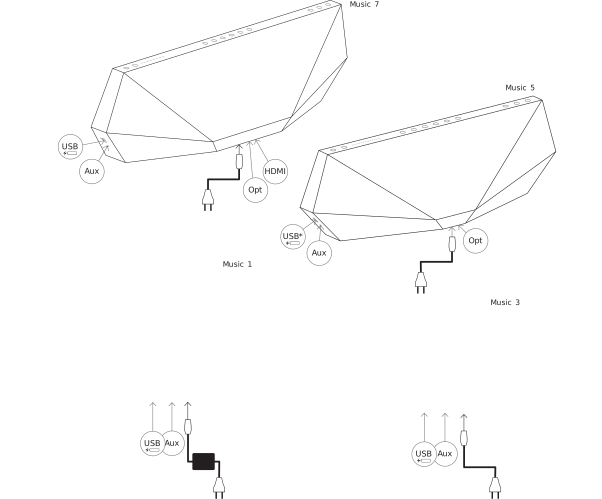
In addition to the network, Bluetooth and USB connections available on all Dynaudio Music speakers, each model can be used with wired audio sources. These are shown in the table below:
| Speaker | Analogue Aux | Optical Digital | HDMI (ARC) |
|---|---|---|---|
| Music 1 | Yes (3.5mm jack) | ||
| Music 3 | Yes (3.5mm jack) | ||
| Music 5 | Yes (3.5mm jack) | Yes (Toslink) | |
| Music 7 | Yes (3.5mm jack) | Yes (Toslink) | Yes (HDMI) |
The analogue Analogue Aux socket can be used to connect and play traditional audio sources such as CD players, and more modern sources such as mobile devices equipped with headphone outputs. Simply connect the source output to the speaker input socket using terminated with a 3.5mm stereo jack plug.
The Optical Digital socket can be used to connect and play digital audio sources such as CD players and televisions. Connect the source digital output to the speaker input socket using a cable terminated with a Toslink optical plug.
The HDMI (ARC) socket is intended for the connection of appropriately equipped televisions to enable television sound to be played by a Music 7. Connect a television HDMI socket to the speaker HDMI socket using a standard HDMI cable.
If the television is equipped with ARC (Audio Return Channel), its remote control will be able to take over volume control of the Music 7. The television HDMI output and ARC function may need to be switched on from its setup menus. Its internal speakers may also need to be switched off.
Using Dynaudio Music
Your Dynaudio Music speaker can be operated and controlled from its on-body buttons, the remote control handset or entirely via the Dynaudio Music App. The on-body buttons are illustrated in Diagram 4 and the remote control handset is illustrated in Diagram 5.
On-body Buttons
The following paragraphs describe the on-body buttons for each Dynaudio Music speaker model.
Music 1 and Music 3
On/Off: Press the Power button to switch on your speaker. To switch off, press and hold the Power button for 2 seconds.
Volume +/–: Press and hold the + or – buttons respectively to raise or lower the volume. Volume level is displayed by the indicator array on the top panel.
Playback: Press the play/pause button  to play or stop playback. Press the next
  or previous
  buttons respectively to play the next or previous track.
Note
For a wired audio source connected via the Aux socket, the play/pause button will function as an un-mute/mute control. Wired audio sources are unable to respond to next and previous commands.
Source: Press the Source button to scroll though the favourite items assigned in the Dynaudio Music App and any other available sources. Only connected and active sources will be available for selection. Source and preset selection is displayed by the indicator array on the Music 3 top panel and Music 1 side panel.
Note
Network streamed audio (other than preset favourites) can only be selected and played from the Dynaudio Music App (or an alternative music playback app) and will take priority over locally selected sources.
Music 5 and Music 7
Volume +/–: Press and hold the + or – buttons respectively to raise or lower the volume. Volume level is indicated by the indicator array on the top panel.
Playback: Press the play/pause button to play or stop playback. Press the next or previous buttons respectively to play the next or previous track.
Note
For wired audio sources the play/pause button will function as an un-mute/mute control. Wired sources are unable to respond to next and previous commands.
Preset 1 to 5: Press buttons one to five to select favourite items assigned to each one in the Dynaudio Music App.
Note
Preset buttons with no favourite assigned have no primary function.
Source: Press the button to scroll through the available sources. Only connected and active sources will be available for selection.
Note
Network streamed audio (other than preset favourites) can only be selected and played from the Dynaudio Music App (or an alternative music playback app) and will take priority over locally selected sources.

- 1: Volume
- 2: Presets
- 3: Presets/Sources
- 4: Sources
- 5: Playback
- 6: Power
Remote Control Handset

The Music 3, Music 5 and Music 7 are supplied with a remote control handset that principally duplicates the speaker on-body buttons.
Note
The batteries supplied must be installed in the remote control handset before it can be used. Simply slide the battery cover away and insert the batteries in the slots taking care that their polarity is correct.
Playback
Press the play/pause button to play or stop playback. Press the next or previous buttons respectively to play the next or previous track.
Note
For wired audio sources (Aux, Opt, HDMI), the play/pause button will function as an un-mute/mute control. Wired sources are unable to respond to next and previous commands.
Volume
Press and hold the + or – buttons respectively to raise or lower the volume. Volume level is indicated by the indicator array on the top panel.
Source 
Press to scroll through and select available presets and sources.
Note
Only connected and active sources will be available for selection.
Dynaudio Music App
In addition to enabling volume, playback, internet radio, and preset functions, the Dynaudio Music App can also link through to music streaming services to create a common portal for all your music.
The app also can suggest new music inspired by your favourite genres, artists, albums and songs, and even assign playlists to the Music speaker Preset buttons.
Setting up Dynaudio Music
With your Dynaudio Music speaker connected to your Wi-Fi network and any other desired sources it is ready for use.
In addition to enabling Wi-Fi and Bluetooth connection and access to your streaming services and favourite music, the Dynaudio Music App provides a variety of speaker setup options. These will enable you to fine-tune the performance of your Dynaudio Music speaker and to select presets.
Although it is not necessary to modify any default settings in order to begin enjoying your speaker, doing so will enable you to get the most from it. The Dynaudio Music App setup functions include the following:
NoiseAdapt
Provides intelligent volume control that automatically adjusts your speaker’s dynamic range over multiple frequency bands to compensate for variations in ambient noise level and to enhance clarity.
RoomAdapt
Provides intelligent compensation for the influence of position on the sound of your speaker. Your Dynaudio Music speaker will adapt its sound to suit its location in the room.
Sound Presets
Provides optional sound presets designed for music, speech and movie programme material.
Bass and Treble
Enables adjustment of bass and treble levels to provide overall control of speaker tonal balance.
iRadio Browsing
Enables iRadio stations to be browsed and favourites saved as presets.
Favourite Presets
Your Music speaker can store five favourite items; iRadio stations or streaming playlists for example, for quick access. On Music 5 and Music 7 the favourite items can be assigned by the app to one of the on-body Preset buttons.
Note
Dynaudio Music speakers have five iRadio station presets stored by default.
Groups
Enables multiple Dynaudio Music speakers to be grouped to provide multi-room audio.
Stereo Pair
Enables two Dynaudio Music speakers to be stereo linked to provide a wider stereo image than can be achieved from a single unit. One Dynaudio Music speaker is assigned to the left channel and one is assigned to the right channel.
Balance
If two Dynaudio Music speakers are operating as part of a stereo pair the balance function enables their relative volume to be adjusted.
Speaker Settings
Enables indicator brightness to be adjusted and auto standby to be selected.
Firmware Update
Dynaudio Music speakers are subject to continual development and refinement. Use the firmware update routine to ensure that your speaker has all the latest features.
Note
Music 1 and Music 3 must be connected to mains power during the firmware update process.
Cleaning Your Speaker
Brush the grille surfaces with a soft brush and the metal surfaces with a clean lint-free cloth. Do not use a vacuum cleaner. If you wish to use a cleaning agent, apply it to the cleaning cloth and not directly to the speaker. Test a small area first, as some cleaning products may damage some of the surfaces. Avoid products that are abrasive or contain acid, alkali or anti-bacterial agents.
Grille Removal and Replacement
The Music 5 and Music 7 can be fitted with alternative coloured front and rear grilles. Grilles can be supplied by your local Dynaudio distributor or retailer.
To remove a grille gently pull it away from the speaker body starting at the bottom. To fit a grille align its pegs with the retaining holes in the speaker body and gently push it home. Start with the lower, central pegs and retaining holes. Do not touch any components or drivers uncovered by grille removal.
Resetting Your Speaker
Your speaker can be returned to its default settings using the pin-hole reset button located near the power socket. Use a straightened paper-clip to press and hold the reset button for two seconds. The first volume indicator will flash red while the reset is underway. When the reset is complete the speaker will restart in both Wi-Fi Setup and Bluetooth Paring modes.
Support + FAQ
Should you require help or advice there are a variety of support options for Dynaudio products. These can be found at www.dynaudio.com. Answers to some frequently asked questions can also be found in the following section:
Frequently Asked Questions
How do I adjust the sound of my Dynaudio Music speaker?
The Dynaudio Music App Speakers setup screen provides bass and treble controls that enable tonal adjustment. The EQ presets, and RoomAdapt settings also provide tonal adjustment.
How can I assign presets to my speaker?
When connected to a speaker find the content you wish to add to a preset (an artist, radio station or Music Now etc.) and click the small icon with a “+” on the top right of your app screen.
How do I switch on Wi-Fi Setup Mode?
To initiate Wi-Fi Setup Mode on Music 1 and Music 3, press and hold the Source button for two seconds. Bluetooth Pairing Mode will be initiated simultaneously. To initiate Wi-Fi Setup Mode on Music 5 and Music 7, press and hold the Wi-Fi button.
How do I switch on Bluetooth Pairing Mode?
To initiate Bluetooth Pairing Mode on Music 1 and Music 3, press and hold the Source button for two seconds. Wi-Fi Setup Mode will be initiated simultaneously. To initiate Bluetooth Pairing Mode on Music 5 and Music 7, press and hold the Bluetooth button.
How do I connect my speaker to a different Wi-Fi network?
Switch the speaker into Wi-Fi setup mode and launch the Dynaudio Music App on a mobile device that is connected to the required Wi-Fi network.
How do I update my speaker’s firmware?
The Dynaudio Music App will display a notification when new firmware is available for your speaker. Tap on the notification to begin the firmware update process. Music 1 and Music 3 can only be updated if connected to mains power.
Can I disable the Dynaudio Music RoomAdapt and NoiseAdapt features?
RoomAdapt and NoiseAdapt can be disabled within the Dynaudio Music App Speaker setup page.
How do I group multiple Dynaudio Music speakers?
The Dynaudio Music App incorporates a group setup screen that enables multiple speakers to be grouped.
How do I create a stereo pair of Dynaudio Music speakers?
The Dynaudio Music App incorporates a stereo setup screen that enables two speakers to combined as a stereo pair.
How many Dynaudio Music speakers can I group together?
Up to eight Dynaudio Music speakers can be grouped.
Can I use my Dynaudio Music speaker to charge my phone or tablet battery?
Your Dynaudio Music speaker will automatically charge the battery of a connected rechargeable USB device. Music 1 and Music 3 are limited in charging capacity to smaller USB devices and may not be able to charge tablet devices.
Can I use Chromecast?
Dynaudio Music speakers don’t currently support Google Chromecast internally. However, Chromecast streams can be played by your Dynaudio Music speaker via a Chromecast device connected to the speaker’s Aux input.
Can I connect my Dynaudio Music speaker to my Dynaudio Xeo multiroom system?
Dynaudio Music speakers are not currently compatible with Dynaudio Xeo multiroom systems.
Do Dynaudio Music speakers support MQA files?
Dynaudio Music speakers don’t currently support MQA decoding, however MQA encoded files will play normally at their default resolution.
Do Dynaudio Music speakers support aptX HD?
Dynaudio Music speakers don’t currently support aptX HD.
Does the Dynaudio Music App support Apple Music?
The Dynaudio Music App doesn’t currently support Apple Music, however you can stream Apple Music content to your speaker via AirPlay or Bluetooth.
Where can I find my speaker’s firmware version and serial number?
Tap the Speakers tab on the Dynaudio Music App home screen, then tap “About Speaker”.
Can I play music from a USB memory stick?
Music can be played directly from an iOS device via the Dynaudio Music speaker USB input, however music stored on simple USB memory sticks cannot be played.
Why does the music drop-out sometimes when playing from music streaming services and internet radio?
Streaming drop-outs are usually caused by poor internet or Wi-Fi network service. You may find it helpful to re-start your network router.
Can I use public or commercial Wi-Fi to connect my speaker?
Dynaudio Music speakers are not able to connect to open or most public or commercial Wi-Fi networks.
Can I connect my Dynaudio Music speaker to my TV?
If your TV has an analogue or digital audio output, you can connect it to your Dynaudio Music speaker via the Aux or Optical inputs respectively (you’ll need a stereo phono to stereo 3.5mm jack cable, or a Toslink optical digital cable). The Music 7 has an HDMI socket specifically intended for connecting to TVs (you’ll need an HDMI cable for this). In some cases, you’ll be able to use your TV’s remote handset to control the Music 7’s volume.
How do I reset my speaker to its factory settings?
Your speaker can be returned to its default settings using the pin-hole Reset button located near the power socket. Use a straightened paper-clip to press and hold the Reset button for two seconds. The first volume indicator will flash red while the reset is underway. When the reset is complete your speaker will restart in both Wi-Fi Setup and Bluetooth Paring modes.
How do I link to TIDAL in the Dynaudio Music App if I originally used a Facebook login to register with TIDAL?
Use the TIDAL password reset system to create a new password (select, “Forgot Password” at tidal.com). The new password can then be used with the email address associated with your Tidal account to link Tidal to the Dynaudio Music App.
Specification
| Music 1 | Music 3 | Music 5 | Music 7 | |
|---|---|---|---|---|
| Audio Inputs | AirPlay | AirPlay | AirPlay | AirPlay |
| Internet Radio | Internet Radio | Internet Radio | Internet Radio | |
| UPnP™ | UPnP™ | UPnP™ | UPnP™ | |
| Bluetooth | Bluetooth | Bluetooth | Bluetooth | |
| USB/iOS | USB/iOS | USB/iOS | USB/iOS | |
| 3.5mm Jack | 3.5mm Jack | 3.5mm Jack | 3.5mm Jack | |
| Optical S/PDIF (Toslink) | Optical S/PDIF (Toslink) | |||
| HDMI (ARC) | ||||
| Audio Formats | WAV AIFF ALAC MP3 AAC Bluetooth (aptX) |
WAV AIFF ALAC MP3 AAC Bluetooth (aptX) |
WAV AIFF ALAC MP3 AAC Bluetooth (aptX) |
WAV AIFF ALAC MP3 AAC Bluetooth (aptX) |
| Connectivity | Wi-Fi (802.11a/b/g/n) | Wi-Fi (802.11a/b/g/n) RC5 remote control |
Wi-Fi (802.11a/b/g/n) RC5 remote control |
Wi-Fi (802.11a/b/g/n) RC5 remote control |
| Dimensions | 228 x 220 x 103mm | 405 x 220 x 143mm | 659 x 200 x 183mm | 859 x 200 x 183mm |
Power Consumption
- Network Standby: < 3W
- Deep Standby: < 0.5W
Mains Supply
- 100V, 115V or 230V, 50/60Hz
Legal Information
Note
Specifications may be subject to occasional revision.

Music 5 & Music 7: Made for iPhone 7 Plus, iPhone 7, iPhone 6s Plus, iPhone 6s, iPad Pro 9.7-inch, iPod touch 6th generation. iPad, iPhone, and iPod are trademarks of Apple Inc., registered in the U.S. and other countries.

Music 1 & Music 3: Made for iPhone 7 Plus, iPhone 7, iPhone 6s Plus, iPhone 6s, iPod touch 6th generation. iPhone, and iPod are trademarks of Apple Inc., registered in the U.S. and other countries.
“Made for iPod,” “Made for iPhone,” and “Made for iPad” mean that an electronic accessory has been designed to connect specifically to iPod, iPhone, or iPad, respectively, and has been certified by the developer to meet Apple performance standards. Apple is not responsible for the operation of this device or its compliance with safety and regulatory standards. Please note that the use of this accessory with iPod, iPhone, or iPad may affect wireless performance.

AirPlay works with iPhone, iPad, and iPod touch with iOS 8.0.0 or later, Mac with OS X Mountain Lion or later, and PC with iTunes 10.2.2 or later. AirPlay is trademark of Apple Inc., registered in the U.S. and other countries.

The Bluetooth® word mark and logos are registered trademarks owned by Bluetooth SIG, Inc. and any use of such marks by Dynaudio is under license. Other trademarks and trade names are those of their respective owners.

Wi-Fi® is a registered trademark of Wi-Fi Alliance®.

UPnP™ is a trademark of the UPnP™ Forum.

DLNA®, the DLNA Logo and DLNA CERTIFIED® are trademarks, service marks, or certification marks of the Digital Living Network Alliance.

Qualcomm is a trademark of Qualcomm Incorporated, registered in the United States and other countries. aptX is a trademark of Qualcomm Technologies International, Ltd., registered in the United States and other countries.
Qualcomm aptX is a product of Qualcomm Technologies International, Ltd.